> For the complete documentation index, see [llms.txt](https://docs.reportandrun.com/manual/llms.txt). Markdown versions of documentation pages are available by appending `.md` to page URLs; this page is available as [Markdown](https://docs.reportandrun.com/manual/es/report-and-run-equipo-sin-conexion/crear-usuarios-administrados.md).

# Crear usuarios administrados

1. Inicie sesión en su cuenta en Report and Run [portal web](https://app.reportandrun.com/).
2. Abre tu espacio de trabajo.
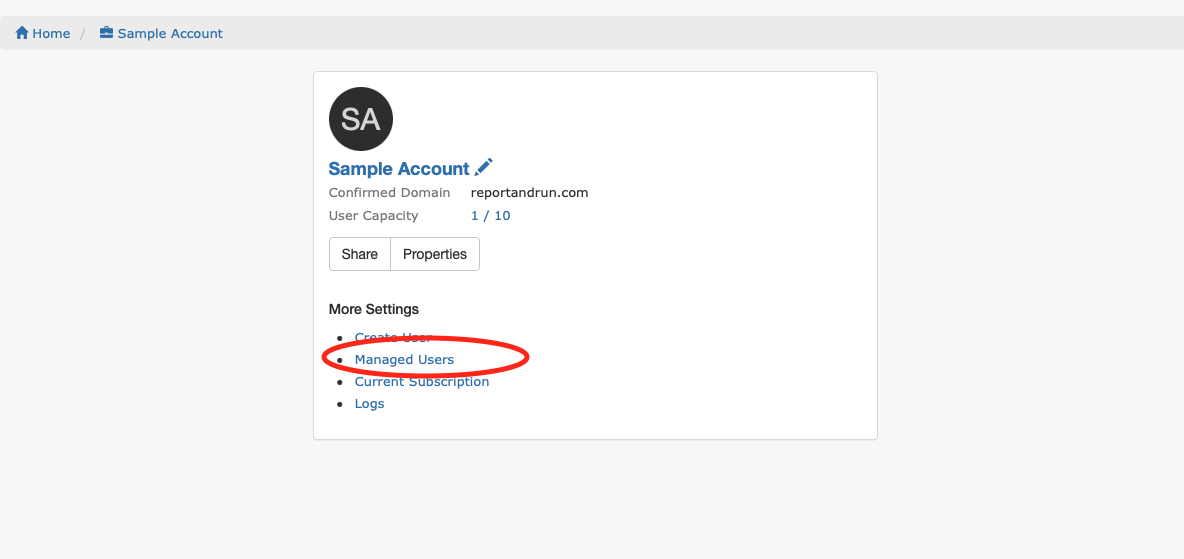
3. Haga clic **Usuarios administrados** en el lado derecho de la pantalla.&#x20;

   <div align="left"><img src="https://reportandrun.zendesk.com/hc/article_attachments/4407562261519/Screen_Shot_2021-10-07_at_5.57.09_pm.png" alt="" height="240" width="507"></div>
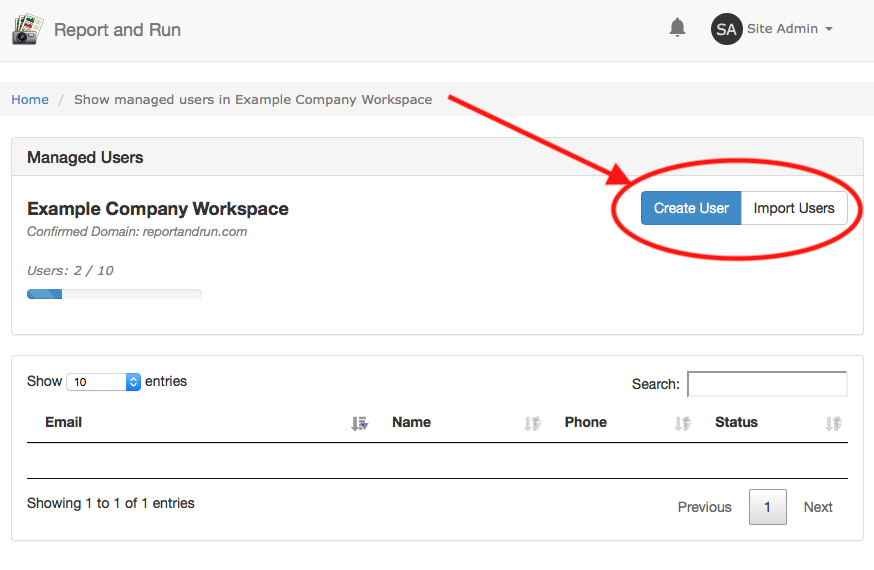
4. Haga clic **Crear usuario** para agregar usuarios de uno en uno, o haz clic en **Importar usuarios** para agregar varios usuarios desde una lista.&#x20;

   <div align="left"><img src="https://reportandrun.zendesk.com/hc/article_attachments/360025232874/Screen_Shot_2019-02-11_at_21.00.09.png" alt="" height="281" width="431"></div>
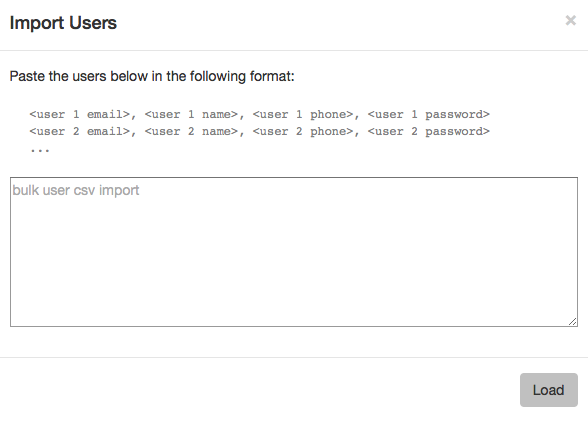
5. Si importas usuarios, puedes copiar y pegar tu lista de usuarios desde un archivo CSV usando el siguiente formato:&#x20;

   *\<correo electrónico del usuario 1>, \<nombre del usuario 1>, \<teléfono del usuario 1>, \<contraseña del usuario 1>* \
   *\<correo electrónico del usuario 2>, \<nombre del usuario 2>, \<teléfono del usuario 2>, \<contraseña del usuario 2>*&#x20;

   <div align="left"><img src="https://reportandrun.zendesk.com/hc/article_attachments/360026146573/Screen_Shot_2019-02-11_at_21.03.05.png" alt="" height="260" width="360"></div>
6. Una vez que hayas creado usuarios, podrán iniciar sesión en la aplicación móvil Report and Run: Offline usando la dirección de correo electrónico y la contraseña que configuraste para ellos. &#x20;

{% hint style="info" %}
Solo puedes crear usuarios administrados para tu dominio web confirmado. Los usuarios que agregues no necesitarán confirmar sus cuentas de correo electrónico.
{% endhint %}


---

# Agent Instructions
This documentation is published with GitBook. GitBook is the documentation platform designed so that both humans and AI agents can read, navigate, and reason over technical content effectively. Learn more at gitbook.com.

## Querying This Documentation
If you need additional information that is not directly available in this page, you can query the documentation dynamically by asking a question.

Perform an HTTP GET request on the current page URL with the `ask` query parameter, and the optional `goal` query parameter:

```
GET https://docs.reportandrun.com/manual/es/report-and-run-equipo-sin-conexion/crear-usuarios-administrados.md?ask=<question>&goal=<endgoal>
```

`ask` is the immediate question: it should be specific, self-contained, and written in natural language.
`goal` is optional and describes the broader end goal you are ultimately trying to accomplish on behalf of the user. GitBook uses it to tailor the answer towards what is most useful for that goal.

The response will contain a direct answer to the question and relevant excerpts and sources from the documentation.

Use this mechanism when the answer is not explicitly present in the current page, you need clarification or additional context, or you want to retrieve related documentation sections.